
Why Variables?
In order to retrieve all of the processes currently running on your computer with PowerShell, you simply need to utilize the following CMDlet
Get-Process
This will give you the following output
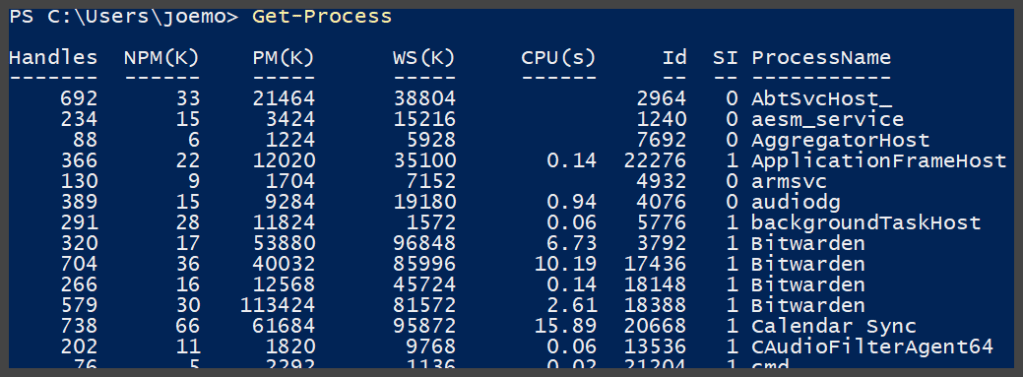
We could say, cool, this shows me all of the processes that are currently running, and some of their important properties. Which is nice, it is, if we wanted to look at this data in real-time, right away, and not need it for any additional purpose. Unfortunately, that is usually not the case when it comes to data in PowerShell, or any language for that matter. Let’s pretend we were running this scriptblock on a remote server (You can learn this in a more advanced post) and we wanted to pull back those processes so we could send them to a support analyst to troubleshoot a performance issue? Hmmm, where would we be able to put that data? I know! A variable! Which is nothing more than a logical piece of memory that holds data.
Variables in PowerShell
PowerShell is no different than any other language in that it uses variables to store data. A variable in PowerShell is easy to spot as it is always preceded by a $ sign.
$myname = "Joe"
This probably seems like a simple line of PowerShell code – I mean it is only 15 characters, and is a simple equation statement, however, it is performing three actions at the same exact time. It is creating a variable named “myname”, it is storing it as a string value in memory, and it is assigning the value of “Joe” to the variable. This is a simplistic example of how to create a variable in PowerShell. If we look at this example a little closer you will see what I mean
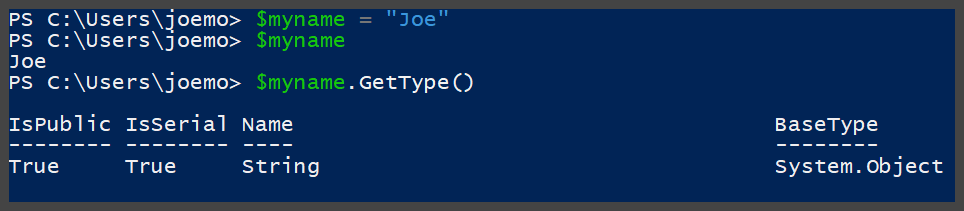
As you can see above, the variable has a value of “Joe” and is a string type variable. This variable can then be used in another command if needed and pass along this stored data. For example, let’s say we wanted to write out the name it stores. We could easily do the following
Write-Host $myname
This will write the output as shown below

The variable has allowed this command to write the data stored in the $myname variable without modifying the command line. Therefore, if we simply modify the variable, this command will produce different results.
Data Types in PowerShell
When declaring or utilizing variables, it is important to understand the data type that is being used with the variable. In the above example, the variable was declared and initialized as a string datatype because it was given a string value when it was created. If we wanted to utilize a number let’s say for the variable, then we would have a couple different datatypes to utilize. Two of which are the most common are Int32 and Double. Let’s look at an example
PS C:\Users\joemo> $mynumber = 1
PS C:\Users\joemo> $mynumber.GetType()

IsPublic IsSerial Name                                     BaseType
-------- -------- ----                                     --------
True     True     Int32                                    System.ValueType


PS C:\Users\joemo>
PS C:\Users\joemo> $mynumber = 1.3
PS C:\Users\joemo> $mynumber.GetType()

IsPublic IsSerial Name                                     BaseType
-------- -------- ----                                     --------
True     True     Double                                   System.ValueType
As you can see above – setting $mynumber simply to 1 is an Int32 data type – while setting the same variable to a number with a decimal, such as 1.3 utilizes the Double data type. Let’s look at another data type, which is datetime. As you can most likely guess, this is for storing a date, time, or a combination of both in a variable. However, unlike the Int32, string, or Double data types that we have already looked at, the datetime data type is a little different in how you declare it.
If you look at this simple example, you will see it does not pick up the datetime data type as might be expected
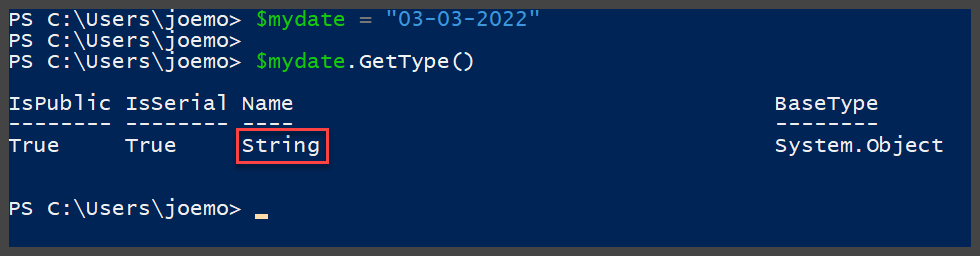
Well, that did not work as expected – it accepted the value of “03-03-2022” but it set the data type of the variable as a string. Perhaps if we add the time in with the date it will assign the proper data type?
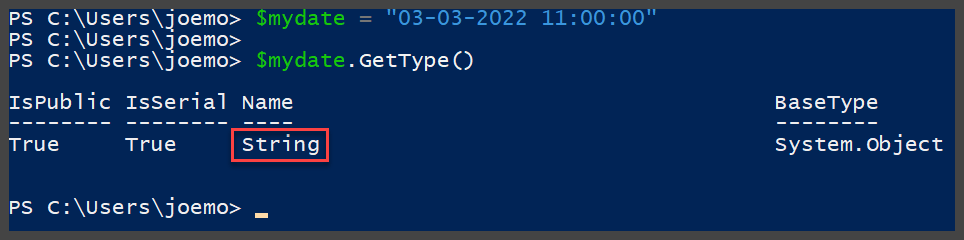
Hmmm, that did not work either – perhaps this needs to be a different way? Yes, it does – because technically what PowerShell thinks I am passing the variable here is a string value. It is going to pick up that first before it decides to think of that string value as a datetime data type. However, we can help it a bit by casting the variable as a datetime data type as we are declaring it.
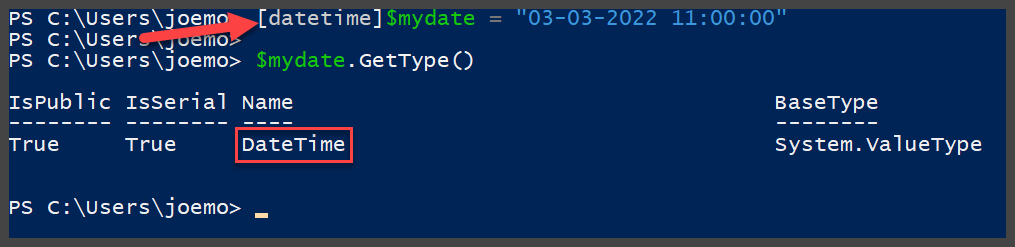
There we go! By casting the PowerShell variable type as we are declaring it, it allowed PowerShell to pick up on the format of the string and accept it as a datetime data type. Now, you may be thinking, what does it matter? Both versions of the variable are going to spit out the same output. Well, not exactly, let’s look at that and why data types are so important.

That is not the result we were looking for when we were trying to increase the date of the variable by 2 days. Why? Because PowerShell thinks that value is a string, and well, let’s not be silly, you cannot add 2 days to a string. What happens if we try it as a declared datetime data type.

Now that looks better! Not only does the output of the variable properly represent a date and time, but the datetime data type allows PowerShell to understand that it now contains a method (deeper into this in another post) of AddDays which allows us to simply add 2 days to the variable if needed. This highlights why it is important to make sure your data types are right when you are dealing with variables. This would also prove important if you were trying to sort variables, and especially important if you were delivering data into a structured database such as SQL.
Variable Arrays and ArrayLists
OK, so you now know how to store some data in a variable. Let’s say you were writing a PowerShell script that is going to capture the names of everyone in a department at your company. You know understand that if you want to store that data in the script and utilize it as output, or want to send it to another source from the script, you will need a variable. However, can I store more than one item in a variable? Let’s see if that works.
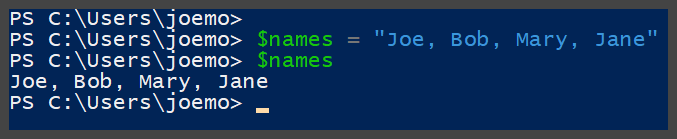
Did that work? It seems that the variable is holding all four names right? What if we wanted to modify the list, or if we wanted to perform an action on each name in the variable? Would that work? No, it would not because the “names” the variable is holding are unfortunately stored as 1 string variable. How can we tell? Almost every variable holds a method known as count, which tells us how many “objects” it holds. Let’s try
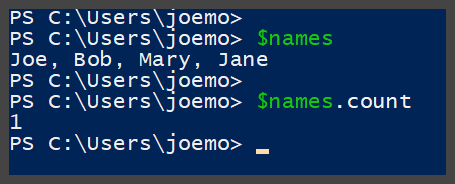
The variable shows 1 object, but how can that be? We gave it four names…no, we didn’t, we gave it one string object. So, how do we house all four names in a variable? We can do that in what is known as an array. Let’s look at how we do that and how it is different.
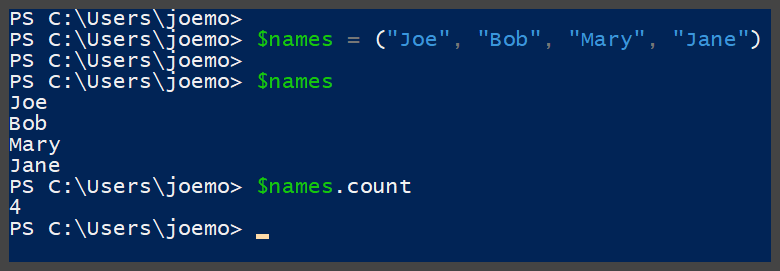
Well, that certainly looks better right? The names variable now shows that it does indeed house 4 objects. The objects also, if you notice, are written out in 4 separate lines when we output the values. This is because this variable is now an array.
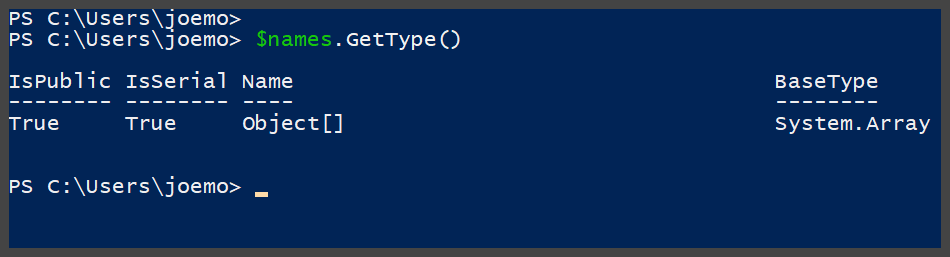
Now that we have an array, we can treat these 4 names as independent objects and not one big string object. With an array, you can sort the objects, you can even step through and utilize each object in a separate command. Let’s look at how some of these are performed on an array.
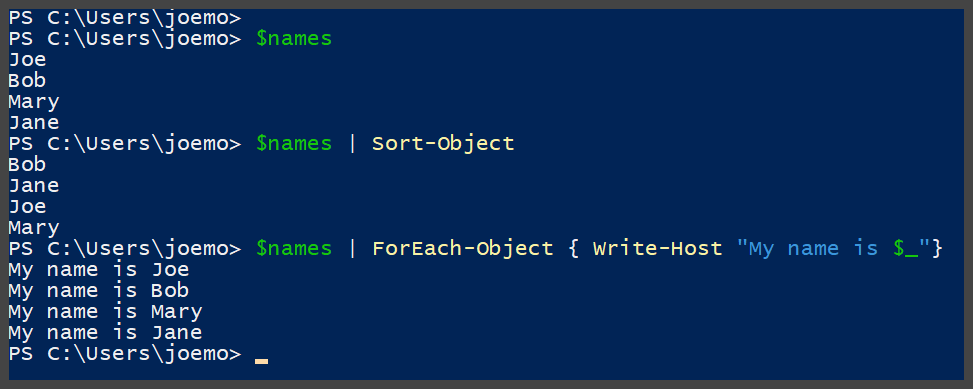
Now, in the above example, I have used some techniques that are a little more advanced, so please disregard worrying about those for now, but the most important thing to understand is we were able to utilize each name in the array as a separate object. So, the next obvious question you most likely have is, cool Joe, I see how you can do these actions with an array, but what happens when I want to add or remove objects in an array? Well, let’s give it a try.
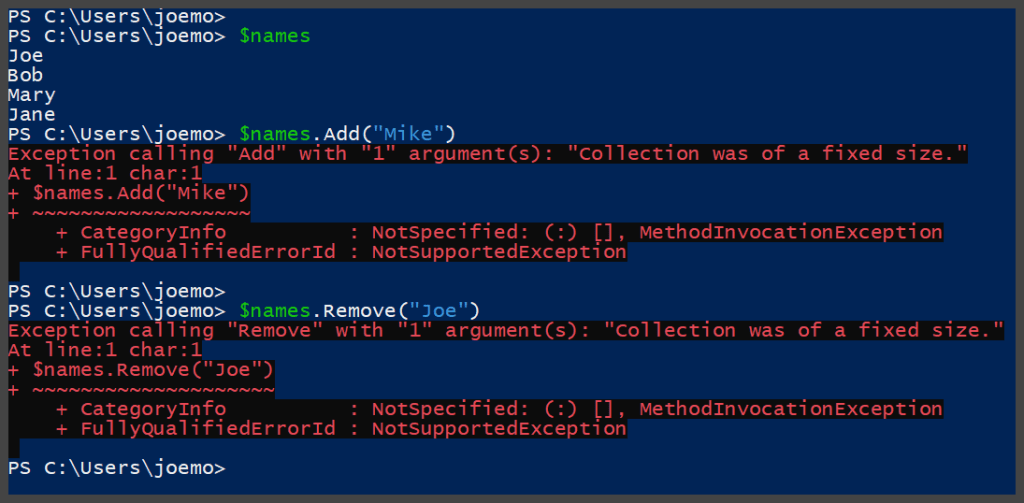
That did not go well, seems that even though an array has an Add and Remove method, we cannot modify the array because it is a “fixed” size. Thus, the limitation of the array, and usually where PowerShell beginners start scratching their heads and head off to Google to find out what is going on. Now, speaking from an advanced standpoint, you CAN actually create a large array that you can then begin to fill up as needed, but this is not a recommended way of utilizing an array variable, plus it will take a larger amount of memory to store this placeholder array. This is where we look at what is known as an ArrayList.
So, an ArrayList you are thinking, no how do I make one of those? It’s almost as simple as making an array honestly., with just a simple modification. Let’s take a look at a couple ways to create an ArrayList.
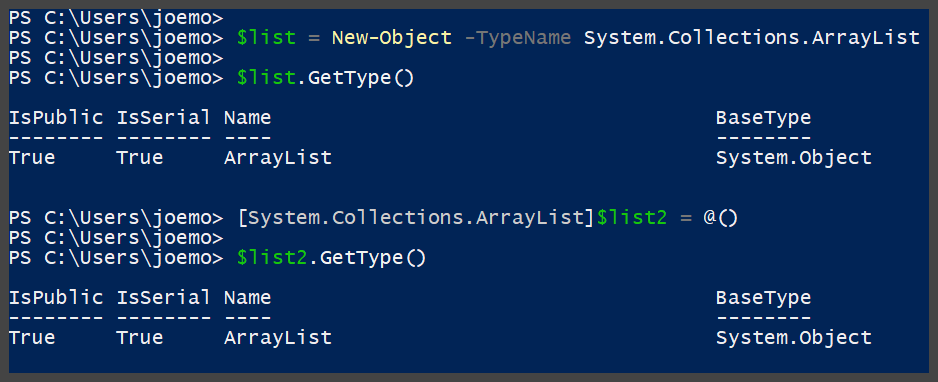
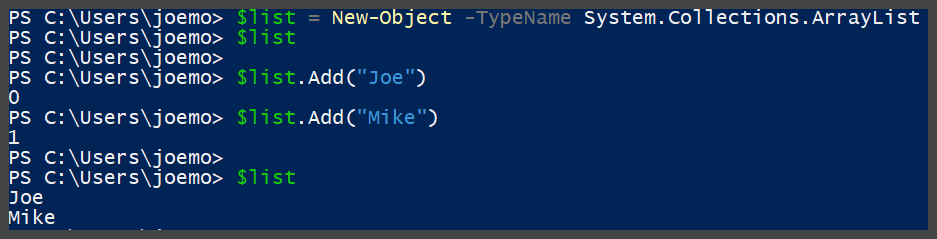
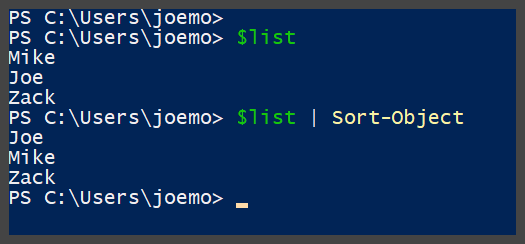
In the examples above, I have shown you the two ways to create an ArrayList. Now, as stated before, an ArrayList has a lot of the same properties and methods as an Array, but unlike an array, it is not a fixed size and can be modified on the fly. Here is an example of adding, removing, and sorting an ArrayList.
Adding to an ArrayList
Sorting an ArrayList
Removing from an ArrayList
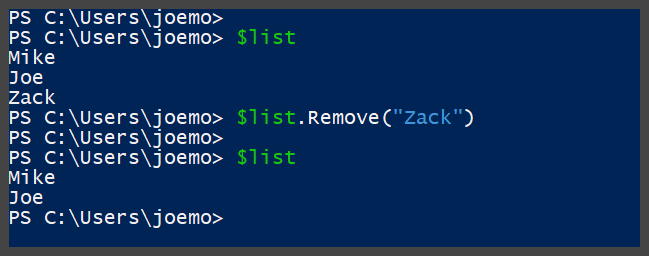
As you can see from the examples above, an ArrayList is a lot more pliable when you are not sure how many objects you are going to need in your variable, or if you are going to need to remove any objects at a later date.
Checking out all the Variables…
If you create a variable and even if you do not assign any values or data to that variable, it is stored in that current session of PowerShell. To see all of your variables, there is a simple CMDlet called
Get-Variable
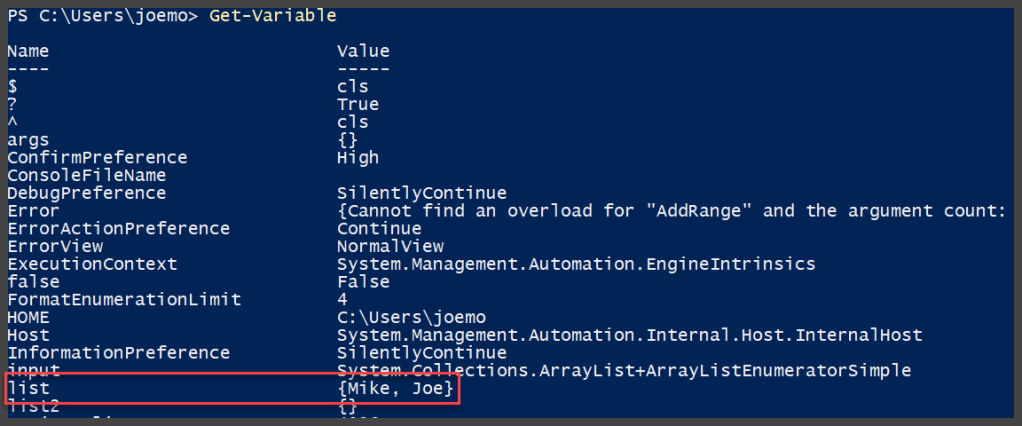
Now, as you can see, there are a lot more variables than I have created in this post/session – and most of these are the System variables that are created and updated as you are utilizing your PowerShell session. Variables such as HOME, which is the home directory for your PowerShell sessions, and then there is a dynamic variable such as Error – which houses all the errors that are encountered during your current PowerShell session. You can see in the highlighted box, that it also contains our ArrayList variable list, which as you can see contains our two names. There is also the ability to change a variable (Which can be also by just assigning it a new value with an equation statement such as $a = 5), clear the value completely for a variable without deleting it, and Remove variables with the following CMDlets.
Set-Variable / Clear-Variable / Remove-Variable
In addition, you can also output a variable by just typing the variable out such as
PS C:\Users\joemo> $a = 5
PS C:\Users\joemo> $a
5
PS C:\Users\joemo>
Or by using a multitude of different output methods such as exporting to a file, generating the data in a table, or even exporting the data into an HTML file.
Conclusion
I hope I have cleared up any confusion or questions you had regarding utilizing variables in PowerShell. This is more a simplistic view on the PowerShell variable as I plan to post a more advanced techniques post on PowerShell variables at a later date!
In the meantime – Happy PowerShelling!
 PowerZure