
“How do I learn PowerShell?”
PowerShell has yet to prove me wrong when I tell someone, “I can do that faster and more efficiently with PowerShell.” I first started with PowerShell back in my end-user administration days, and it did not take me long to understand that I could do 10x the work if I utilized PowerShell efficiently. Now, the age-old question I get from my peers and friends in the industry is… “How do I learn PowerShell?” Honestly, this is a difficult question to answer, because just with a lot of other subjects and technologies in IT/Tech, it is all about doing it to become better at it. Yes, there are many books out there that teach PowerShell, and please do not dismiss them, they are very good and have a lot of great information in them. However, if you read the first couple pages of most any PowerShell book – it will undoubtedly tell you, that the best way to learn PowerShell is by “doing”.
“Got it, I need to DO PowerShell, but where do I start?”
So, you have your cup of coffee, your book you bought, and now you are ready to DO PowerShell. You log in to your computer, you open a run box, you type in “Powershell” and hit enter. This will greet you with a dark blue command window that looks sort of like this
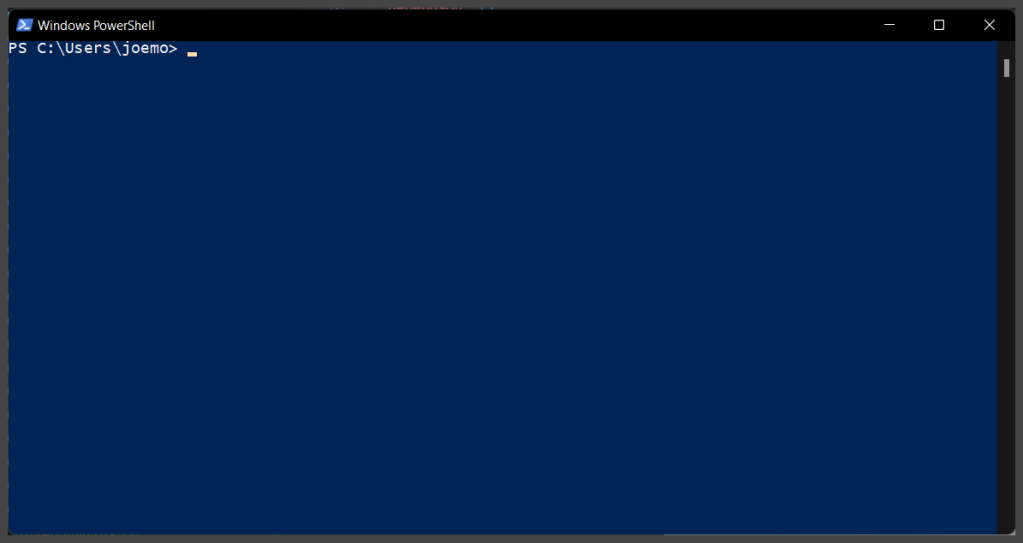
Well, come on, DO some PowerShell… Yeah, it’s not that easy – I mean, forget actually writing a line of PowerShell – what SHOULD I do with it? This is where utilizing it in your everyday administration and operation comes into play. The next question from everyone is – “Where did you start?” I started by not wanting to repeat tasks over and over again. Plain and simple… Are you going to bring up PowerShell to copy one file from one folder to another? I’m not – because by the time I type out the paths of both files (or copy path from explorer context) I could have dragged and dropped the file. It is important to use PowerShell for something you are actually trying to accomplish, I find this the best way to make sure you see your lesson all the way through.
“Just show me some PowerShell already!”
Alright, let’s DO some Powershell, but first, let’s understand how the basics work in PowerShell syntax. In PowerShell, you utilize what is known as a CMDlet to perform an action or task. If you use any of the built-in or community-built CMDlets you will notice that they are more times than not, a [Verb-Noun] such as “Get-Item” or “Add-Disk”. The syntax is NOT case-sensitive and the arguments for the CMDlets are known as “parameters”.
Let’s take this example:
Get-Item -Path C:\Temp
This will simply pull back the directory properties for the C:\Temp folder. To see what this actually looks like in PowerShell, see below
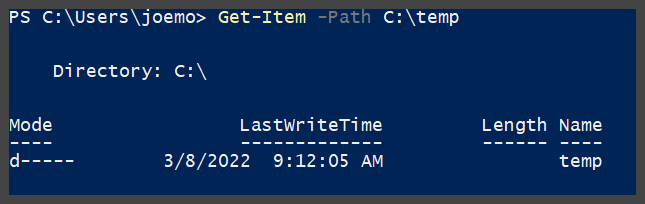
This is a simple example of Verb-Noun CMDlet using a parameter and performing a command to retrieve data. Now, you are reading this and going “Who cares about the information of that specific folder…what about the files in it? Funny you should mention that because there is an additional CMDlet named Get-ChildItem which will show you exactly that information. Let’s take a look
Get-ChildItem -Path C:\Temp
This CMDlet will actually show us the files and/or folders that are actually inside of the C:\Temp folder. This in my opinion is more times than not more useful than a simple Get-Item command. The results are below
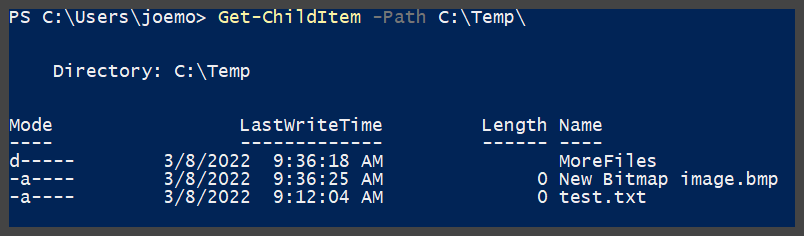
Now, as you can see from the graphic results above, this folder has a text file in it, as well as a bitmap file and also a nested directory. Now, what if I wanted to include the contents of the nested folder too? This is where additional parameters come in – technically, we have already used a parameter which is the -Path parameter for telling us which folder to pull our data, however, CMDlets have multiple parameters that allow you to fine-tune the data you are pulling. Let’s try the -recurse parameter.
Get-ChildItem -Path C:\Temp -Recurse
This command line will not only pull the contents of the folder, but also all of the files/folders that are nested in folders underneath the path root folder. See Below
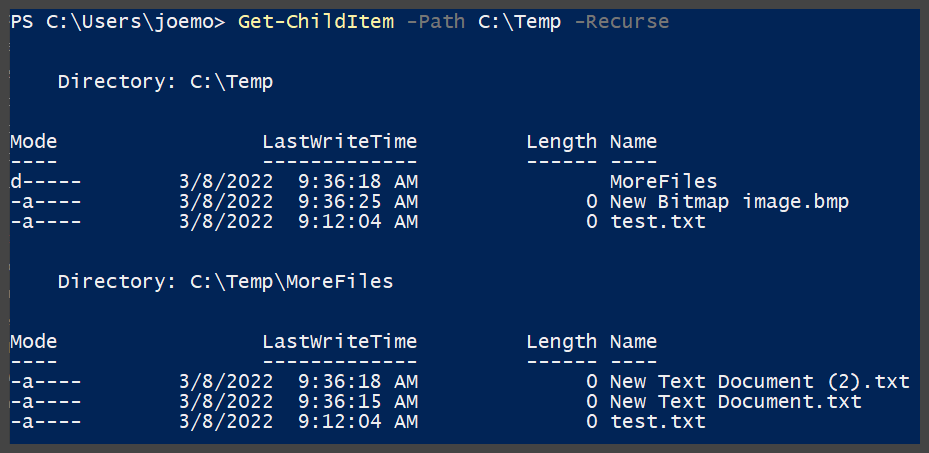
As you can see above, it does pull those additional files/folders that are nested under the path root. This is just a simple example of utilizing more than one parameter for a CMDlet to fine-tune down your results.
There are thousands of CMDlets and even more parameters attached to those CMDlets, so the possibilities of what you can do in PowerShell are almost endless – especially since new CMDlets and functions (discussed in another post) are being created every day with all the new technologies that get released. So, get some coffee, get yourself a PowerShell book (Or better yet, send me some topics and read my posts), and start performing your everyday tasks in PowerShell, and before you know it, you’ll know it!
 PowerZure